Overview
Secure Notes is a secure vault within the Nexus platform designed for storing sensitive information such as passwords, API keys, credentials, and other confidential data. This feature provides enterprise-level security for your organization's most critical information, functioning as an integrated credential management system within Nexus.
This guide provides comprehensive instructions for using Secure Notes effectively and securely.
Getting Started
How to Access Secure Notes
-
Log into Nexus
-
Navigate to the left-side navigation menu and hover over Settings
-
Click on Secure Notes from the submenu that appears
You will now see your Secure Notes dashboard.
Access Permissions
Access to Secure Notes is restricted to authorized users only. If the Secure Notes option does not appear in your Settings menu, contact your administrator to request access.
Updated Access Model
Initially, only Account Admin members will have access to Secure Notes. Admin members may grant these permissions to other roles as needed.
Secure Notes Permissions
The following permissions are used to control Secure Notes capabilities:
|
Permission |
Description |
|---|---|
|
View Secure Notes List |
View the list of all Secure Notes |
|
View Secure Note Details |
View the contents of a specific Secure Note |
|
Create Secure Note |
Create new Secure Notes |
|
Update Secure Note information |
Edit existing Secure Notes |
|
Delete Secure Note |
Delete Secure Notes |
|
Reveal Secure Note |
Reveal the hidden credentials in a Secure Note |
Understanding Your Secure Notes Dashboard
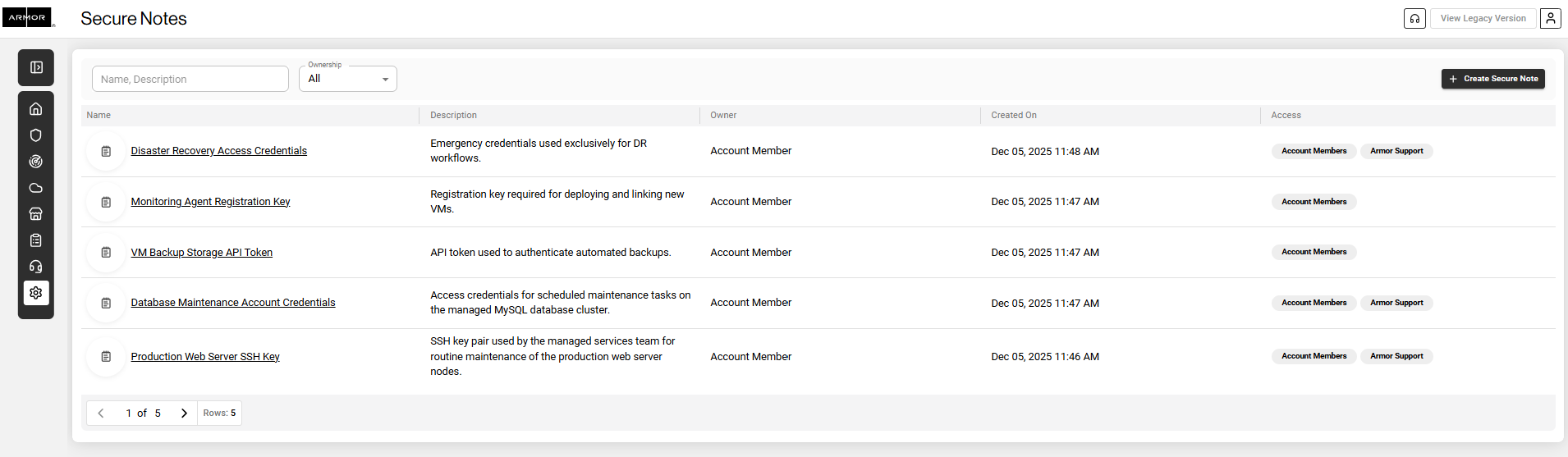
Upon opening Secure Notes, you will see an organized table view displaying all accessible notes. The following sections explain the dashboard components.
Filter Tools
Two filter options are available at the top of the Secure Notes page to help you locate specific notes efficiently:
|
Filter |
Function |
Usage |
|---|---|---|
|
Search Box |
Searches notes by name or description |
Enter keywords to filter your list (e.g., AWS, database, production) |
|
Ownership Filter |
Filters by creator |
Select All, Account Member (your organization), or Armor Support (Armor team) |
Understanding the Ownership Filter
The Ownership filter is particularly useful when Armor Support creates secure notes on your behalf containing important credentials or configuration details. This filter enables you to distinguish between notes created by your team and those created by Armor Support.
Secure Notes Table Structure
Your secure notes are displayed in a table with five columns:
|
Column |
Information Displayed |
Guidelines and Details |
|---|---|---|
|
Name |
The title of the secure note |
Use descriptive names such as Production Database Password or AWS Root Account Credentials |
|
Description |
A summary of the note's purpose |
Critical: Never include sensitive data in this field. It is not encrypted and is visible to all users who can see the note list. |
|
Owner |
The creator of the note |
Displays either Account Member (your organization) or Armor Support (Armor team) |
|
Created On |
Date and time of creation |
Useful for tracking credential age and determining when rotation may be needed |
|
Access |
Users authorized to view the note's contents |
Visibility in the list does not guarantee access to note details. Permissions are controlled individually |
Description Field Guidelines
The description field should help identify notes without revealing sensitive information. Consider it a reference label rather than a secure storage location.
|
Appropriate Description Examples |
Inappropriate Description Examples |
|---|---|
|
Login credentials for the production environment |
Password is Admin123! |
|
API keys for the billing system integration |
API key: sk_live_12345... |
|
SSH keys for server access |
Any actual passwords, keys, or sensitive data |
|
Database connection string for reporting server |
Username: admin, Password: secret |
Viewing Secure Note Details
Step-by-Step: Accessing and Viewing Credentials
-
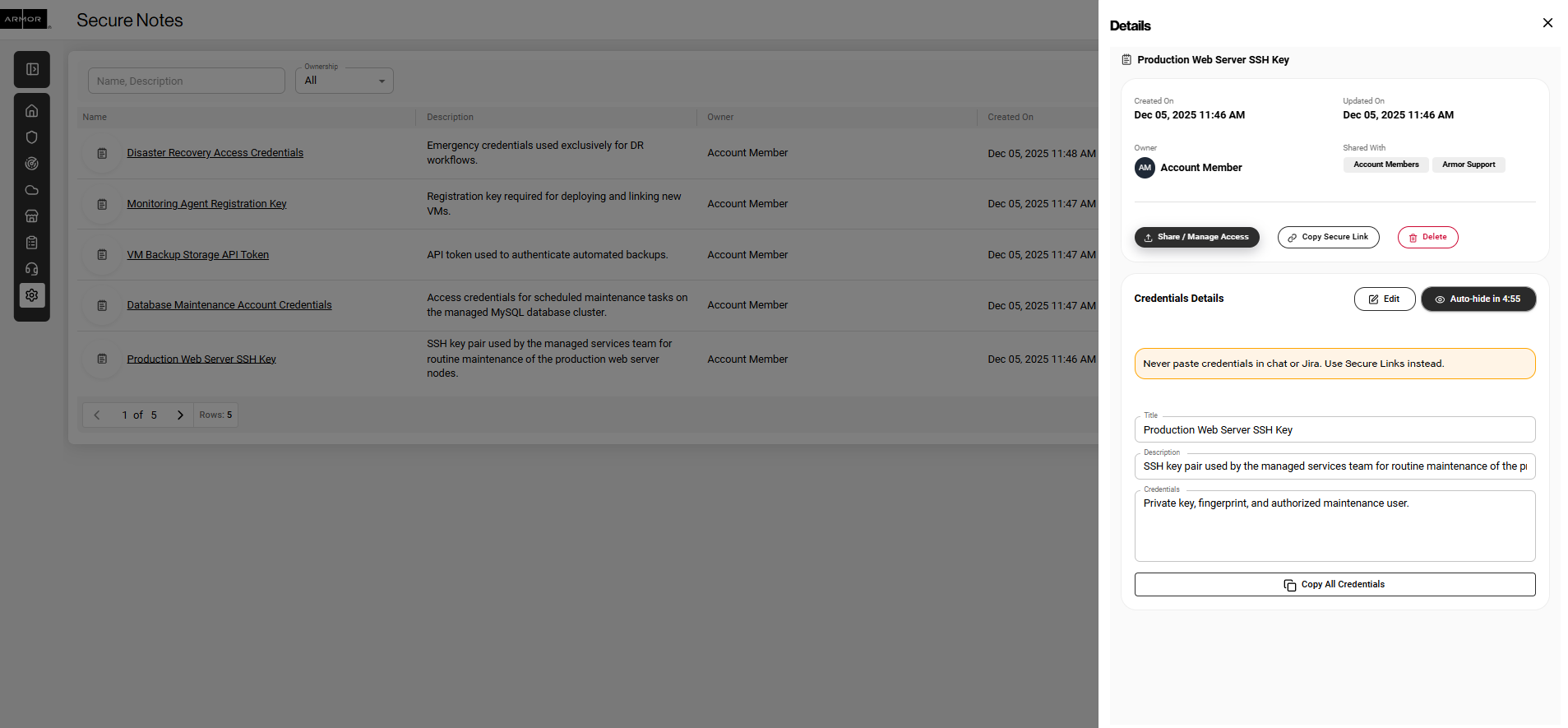
Click on any note in the table. A detailed view window will open displaying the note's information.
-
Click the Show Credentials button. The hidden sensitive information will become visible in the credentials field.
-
View or copy your credentials. You can also use the Copy All Credentials button to copy everything in the credentials field.
Updated Editing Behavior
Secure Notes cannot be edited unless you first choose Reveal Credentials.
-
When credentials are hidden, Secure Note fields are read-only.
-
After you click Reveal Credentials, and if you have the required permission, the Secure Note fields become editable.
This requirement ensures that any update to sensitive information is deliberate and performed with full awareness of the revealed data.
Key Features for Credential Management
|
Feature |
Purpose |
How It Helps |
|---|---|---|
|
Auto Hide Security Feature |
Automatically hides credentials after a short period |
Reduces risk of exposure if you step away |
|
Copy All Credentials |
Copies all credential content in a single action |
Ensures quick and accurate transfer into approved tools |
|
Activity Logging |
Records Create, Update, Delete, and Reveal actions |
Provides an audit trail for compliance and security monitoring |
Auto Hide Security Feature
Credentials auto hide after a short interval.
Click Show Credentials again to reveal them.
Using Copy All Credentials Safely
When you click Copy All Credentials, the entire contents of the credentials field are copied to your clipboard.
|
Best Practices |
Security Risks to Avoid |
|---|---|
|
Ensure you are in a secure environment before copying |
Copying credentials in shared or public spaces |
|
Paste immediately into the intended secure application |
Leaving sensitive data in the clipboard for extended periods |
|
Clear clipboard after use when possible |
Accidentally pasting credentials into chats or documents |
|
Be aware of screen visibility |
Screen sharing or shoulder surfing |
Best Practices
Creating and Organizing Notes
|
Best Practice |
Rationale |
Example |
|---|---|---|
|
Use clear, descriptive names |
Ensures easy identification over time |
AWS Prod Root Account |
|
Write descriptions without sensitive data |
Allows users to identify notes safely |
SSH keys for web servers |
|
Review notes regularly |
Identifies outdated or unnecessary credentials |
Quarterly credential audits |
Security Best Practices
|
Security Measure |
Importance |
|---|---|
|
Close notes immediately after use |
Prevents unauthorized viewing |
|
Never share Nexus login credentials |
Ensures each user maintains accountability |
|
Maintain situational awareness |
Prevents visual exposure of credentials |
|
Track credential age |
Supports credential rotation schedules |
Activity Tracking
Nexus logs Secure Notes activity under Settings > Activity.
Logged actions include:
-
Create
-
Update
-
Delete
-
Reveal
Each entry includes timestamp and user details to maintain strong oversight and security.
Troubleshooting
|
Issue |
Explanation |
Resolution |
|---|---|---|
|
Cannot locate Secure Notes |
Access not granted |
Contact your administrator |
|
Can see a note but cannot open it |
Insufficient permissions |
Contact the note owner for access |
|
Credentials disappeared while viewing |
Auto hide activated |
Click Show Credentials again |
|
Cannot filter or search notes |
Active filter might be applied |
Clear filter or refresh |
User Roles and Access Levels
|
User Type |
Visibility |
Capabilities |
|---|---|---|
|
Account Member (Your Organization) |
Notes with granted access, plus list view of all notes |
Create, view, and manage notes based on assigned permissions |
|
Armor Support (Armor Team) |
Internal view |
Create notes on your behalf, provide support credentials and configurations |
Support Contacts
|
For Assistance With |
Contact |
|---|---|
|
Access permissions and user roles |
Your organization's Nexus administrator |
|
Technical issues or feature questions |
Armor Support |
|
Adding users to Secure Notes |
Your organization's Nexus administrator |
|
Security concerns or suspicious activity |
Armor Support immediately |
Key Reminders
|
Important Considerations |
Rationale |
|---|---|
|
Never include sensitive data in the Description field |
This field is not encrypted |
|
Utilize auto hide |
Protects credentials if left idle |
|
Use Copy All Credentials with caution |
Clipboard contains sensitive data until overwritten |
|
Always close notes after use |
Prevents unauthorized access |
|
List visibility does not equal credential access |
Permissions determine access to note contents |